To add a new breakpoint
There are several ways to add a new breakpoint:
In the disassembly window, click in the gutter to the left of the address you want to set a breakpoint at.
Position the caret (cursor) at the address you want to set a breakpoint and press Ctrl+Space.
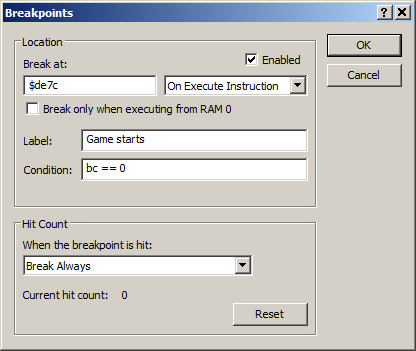
On the Edit menu, click New Breakpoint. Type the address you want to set a breakpoint at and click Add.
On the breakpoints window's toolbar, click the
 button.
Use the keyboard shortcut Ctrl+B to open the New Breakpoint dialog.
Hold down the Ctrl key and right-click the gutter area next to the address you want to set a breakpoint at. This will open the New Breakpoint dialog with the address already filled in.
Note
Give a breakpoint a friendly name to help you identify it in the breakpoints window when you have lots of breakpoints.
Unlike Spectrum debuggers such as HiSoft MONS, Spectaculator breakpoints cannot be overwritten by self-modifying code. If the program changes the instruction at an address containing a breakpoint, the breakpoint will still be active.